
Signalyst Help
Contents
Using Signalyst
Phone Requirements
Advisory Speeds
Red Lights
Crosswalk Signals
Crosswalk Assist
Permissions
Ending
CarPlay
Apple Watch
Shortcuts and Automation
Overview
Thank you for using Signalyst, a mobile app that provides relevant, real-time information to improve travel efficiency and safety. Signalyst connects drivers, cyclists, and pedestrians to transportation infrastructure, providing information before it can be seen from the road. It improves travel efficiency by providing traffic light and crosswalk information, including time-to-green countdowns and green light advisory speeds. It improves travel safety by notifying users of potential vehicle and pedestrian conflicts. It runs in the background and provides real-time updates based on anonymous location.
Using Signalyst
Signalyst is designed to be used by drivers, cyclists, and pedestrians, but only in a safe manner. The best way to use Signalyst is with audio, Live Activity, CarPlay, and/or Apple Watch notifications while it is running in the background. You can also have Signalyst start automatically when you start driving using Shortcuts.
If you intend to look at the display while driving, your phone should be mounted to your dashboard or windshield in a visible location. You should not hold your phone in your hand or lap, and should not touch the screen while your vehicle is moving. In addition, some data, including speed limits and signal timing predictions, may be incorrect, so you should always defer to road signs and traffic lights as the final authority.
The first time you run the Signalyst app, you will be asked to allow Signalyst to access your location. You should select Allow While Using App and make sure Precise Location is selected. Signalyst will conserve your battery by only using your location when the app is open or when the Live Activity is running.
Phone Requirements
Signalyst requires an Apple iPhone or iPad running iOS version 18 or higher. Signalyst also requires access to the Internet in order to retrieve real-time information based on your location. It will use your cellular data plan and may result in additional data fees.
Travel Mode
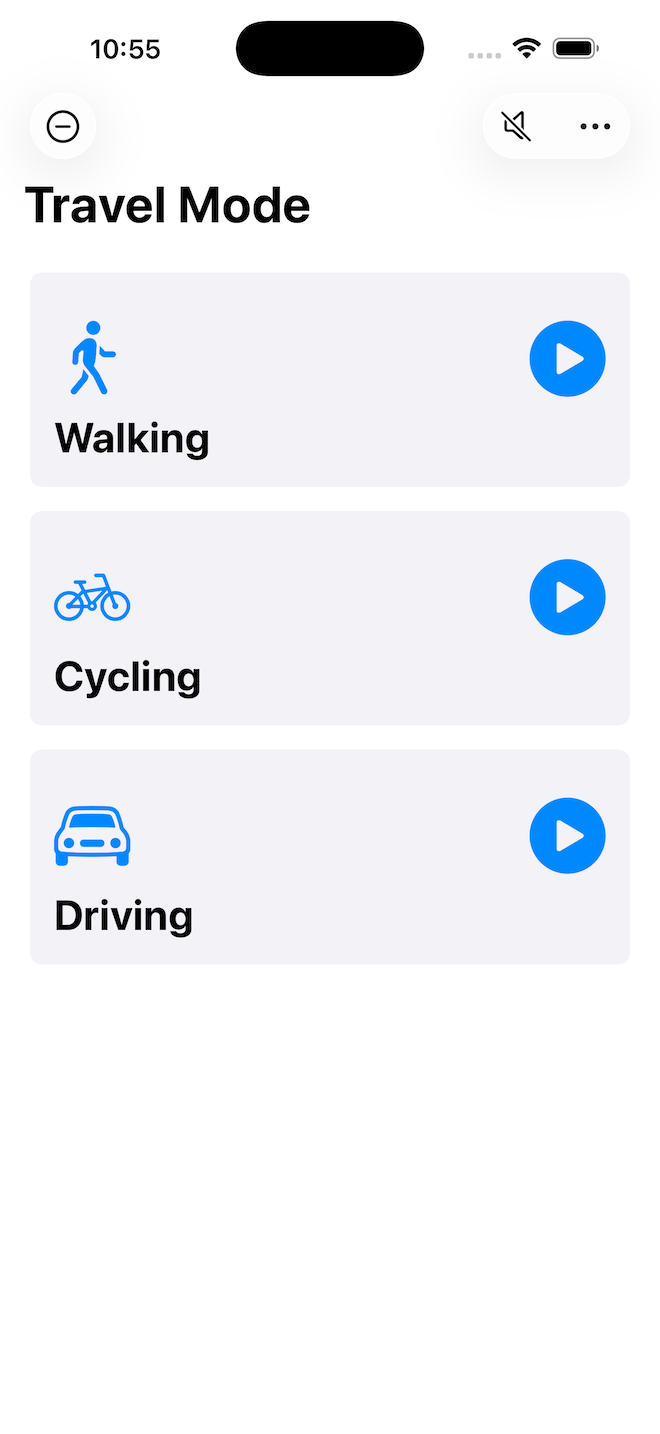
When you first open Signalyst, you will be asked to select between Walking, Cycling, or Driving. Select one by pressing the blue play button next to your travel mode.
Your selection will be used to display appropriate traffic light or pedestrian signals, as well as appropriate safety warnings.
You can change or stop your travel mode later by pressing the button in upper left corner of the screen.
You can access the menu by tapping the icon in the upper-right corner of the screen.
A speaker icon is shown next to the menu icon, and you can tap it to enable or disable audible announcements.
Driving and Cycling
Advisory Speeds
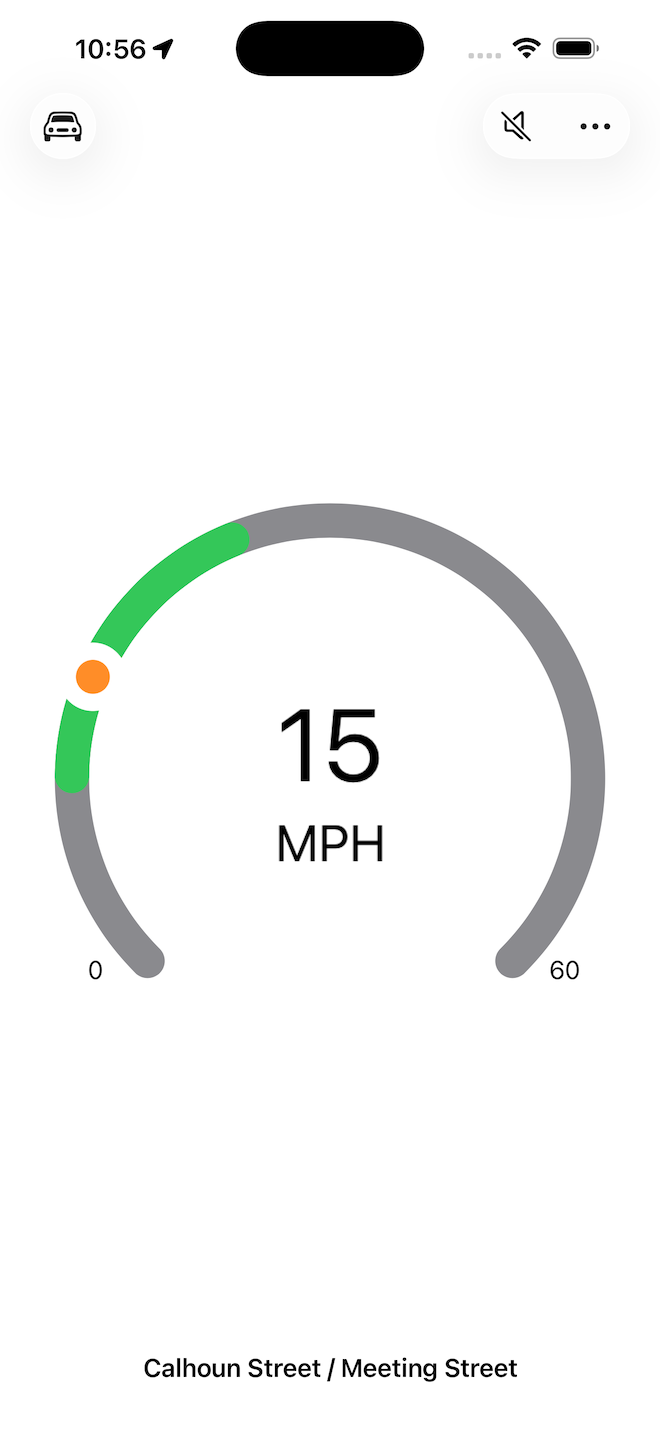
In Driving and Cycling modes, a speedometer displays your current speed with an orange ball.
When approaching an intersection, the street names will be displayed at the bottom of the screen. A green band indicates the range of speeds to arrive at a green light.
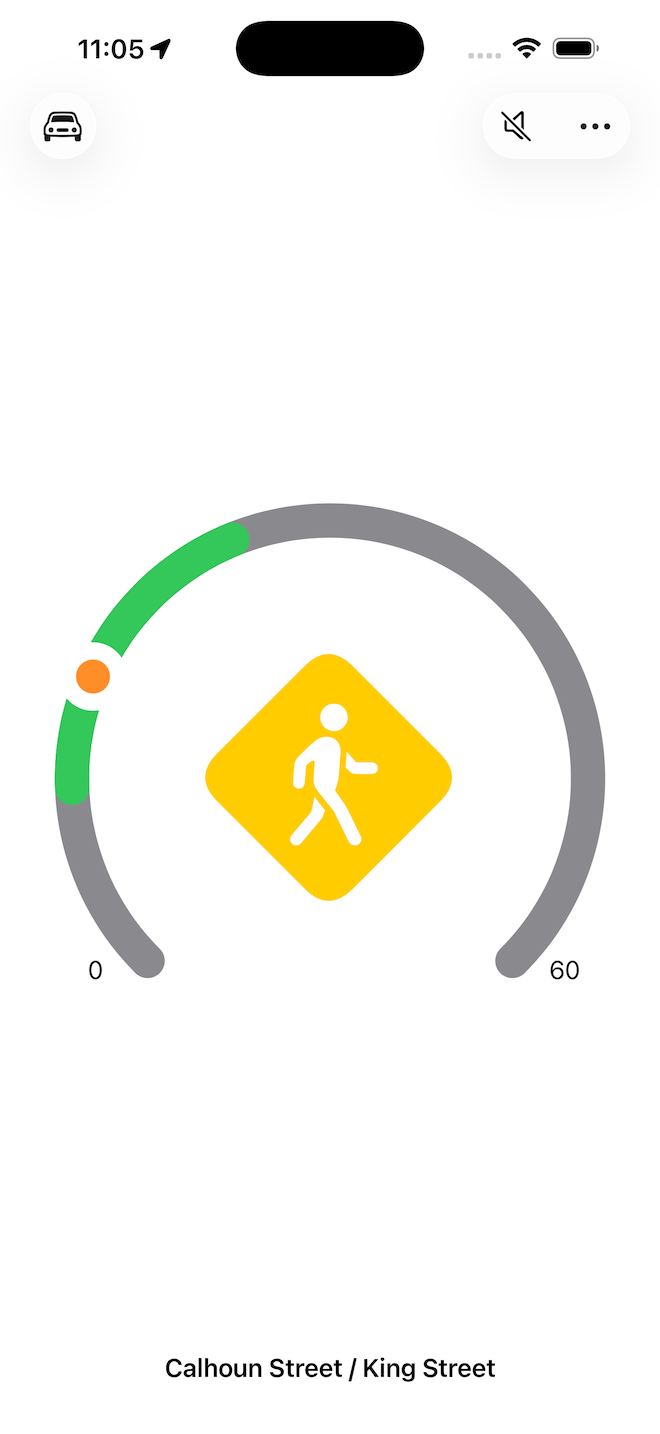
When there is a potential pedestrian conflict, the current speed will be replaced by a pedestrian warning icon inside the speedometer.
Red Lights
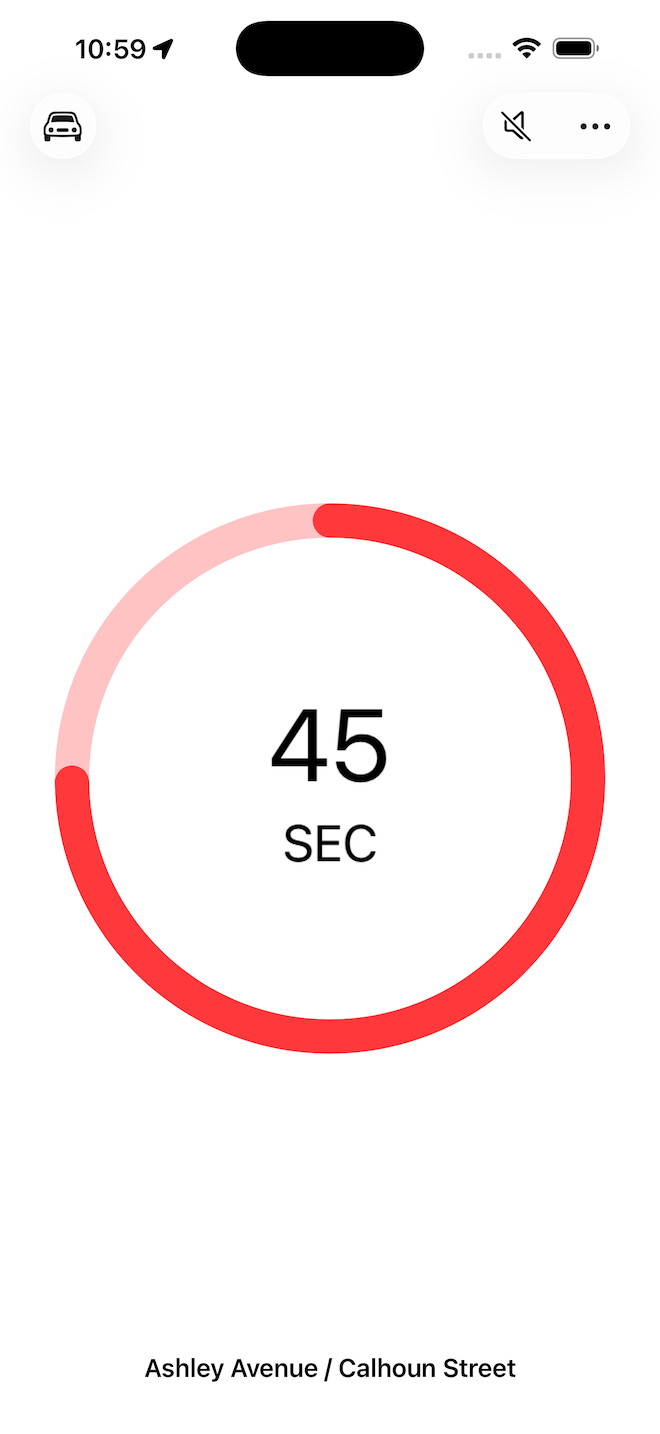
Red circles indicate the wait time for the next green light, with a one minute countdown timer that updates every second. You will see and hear an announcement approximately 10 seconds before the light is predicted to change.
Walking
Crosswalk Signals
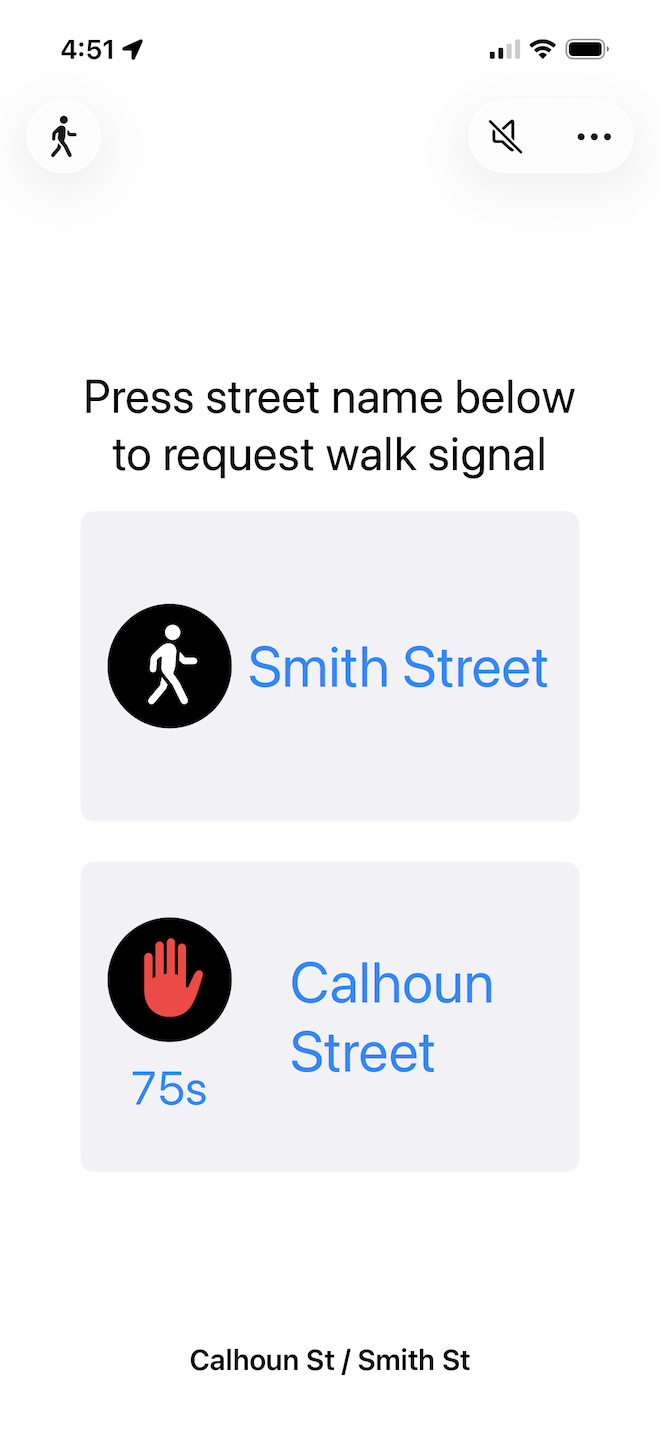
In Walking mode, the states of the two closest crosswalk signals are displayed, along with a countdown time if available.
If supported by the intersection, pressing the street name will request a WALK signal for that crosswalk.
Toolbar and Menu
The toolbar at the top of the screen includes a travel menu, an audio mute button, and a menu for preference settings.
The travel menu on the left has options for the different travel modes as well as an option to stop the current travel.
The mute button allows all spoken audio announcements to be enabled or disabled.
The menu on the right has options for enabling and disabling Safety Alerts, Signal Alerts, and Crosswalk Assist, in addition to a Help link.
Safety Alerts - Enables safety-related alerts including pedestrians in the intersection and speeding vehicles.
Signal Alerts - Enables traffic signal alerts including advisory speed, time-to-green, and prepare for green light.
Crosswalk Assist - Enables audible announcements whenever a crosswalk state changes.
Live Activities
Signalyst uses Live Activities to provide information while using other apps or while using CarPlay or an Apple Watch. A Live Activity is started when you select a travel mode from the app. While the Signalyst Live Activity is running, you will see a traffic signal or safety warning symbol in the Dynamic Island and/or lock screen. When alerts are triggered, the Live Activity will expand to include additional information.
Permissions: Live Activity permissions are enabled by default when Signalyst is installed. To manage permissions later, open the Settings app and go to Apps > Signalyst > Live Activities and make sure Allow Live Activities and More Frequent Updates are both enabled. You can also control whether Live Activities appear on a locked screen via the Face ID & Passcode settings.
Ending: To end the Live Activity, you can select Stop from the Signalyst toolbar or you can swipe left on the activity from the lock screen. Live Activities are ended automatically by iOS after 8 hours. Keeping the Live Activity running while you are not using it will consume battery power.
CarPlay: In CarPlay, Signalyst information will be displayed in a card in the Dashboard view. If there are multiple Live Activities running, you can swipe up or down on the card to choose between them. You must also have Siri Suggestions enabled in CarPlay. To enable Siri Suggestions, open the Settings app on your car's CarPlay display, select Siri & Suggestions, and turn on Show Suggestions in Dashboard. To clear an unwanted Siri Suggestion on your dashboard, tap and hold the card and then select Clear for This Drive.
Apple Watch: Live Activities are displayed in the Smart Stack on Apple Watch. To enable Live Activities, open the Watch app on your iPhone and select Smart Stack. Make sure Allow Live Activities and Auto-Launch Live Activities are enabled. Scroll down to Mirror iPhone Live Activities From, select Signalyst, and make sure Mirror Live Activities from iPhone is enabled and Auto-Launch is set to Smart Stack.
Shortcuts and Automation: You can have Signalyst Live Activities start automatically when you start driving. To do this, open the Shortcuts app and select Automation from the navigation bar at the bottom. Tap the + button and scroll down to either Bluetooth, CarPlay, or Driving focus, depending on your iPhone and car environment. On the next screen, select the appropriate trigger, select Run Immediately, then click Next. On the next screen, scroll down and select Signalyst. On the next screen, select Start Driving. You can also create an automation to Stop Signalyst when you are done driving.
Feedback
Please send any questions or feedback to info@signalyst.app.